
These scripts was built and deployed on my live production server. They automate deployment (locally, and to the server). I decided to create the scripts in order to improve my practical DevOps and systems administration skills.
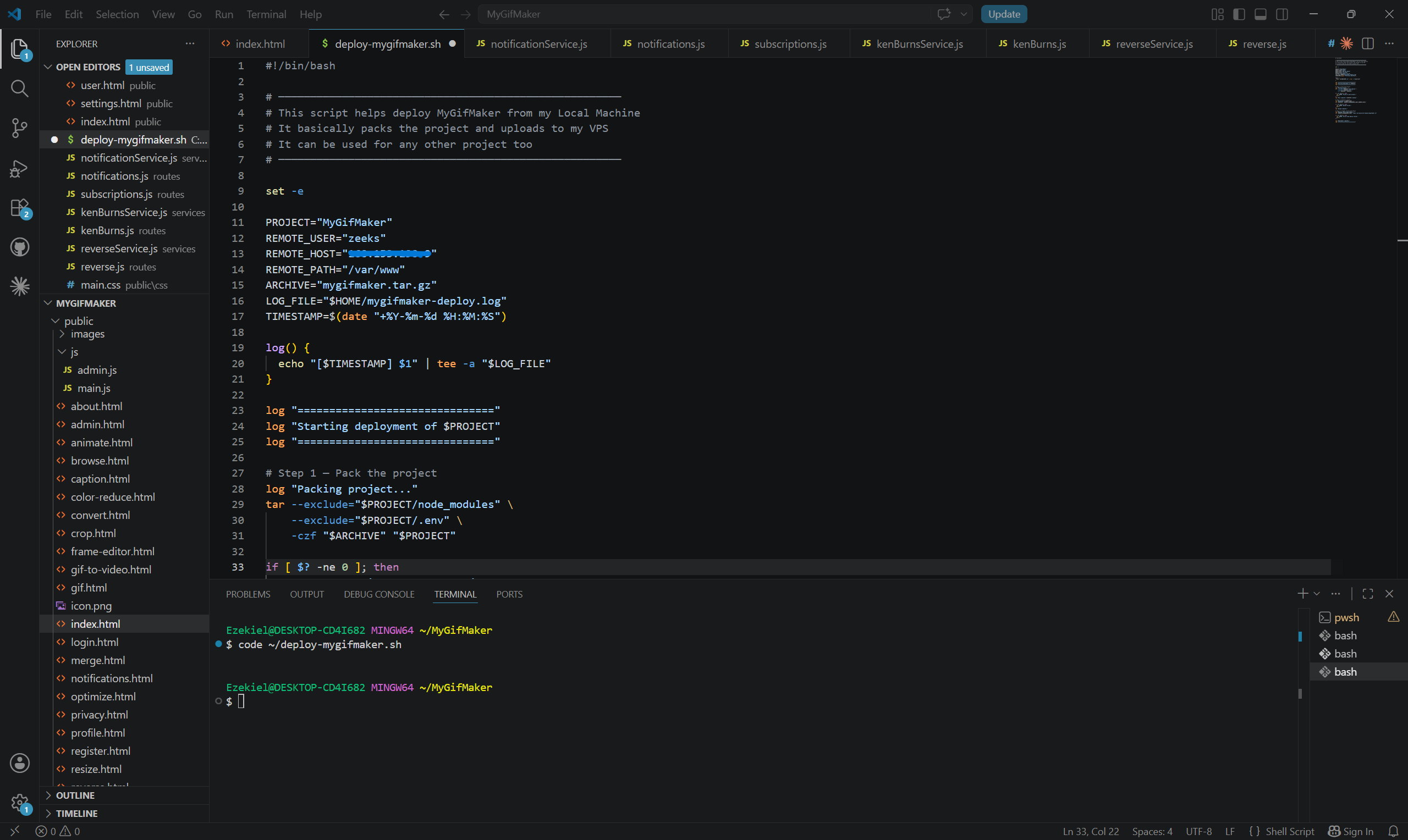
What This Screenshot Shows:Custom CI/CD-style deployment script that packages the project (excluding node_modules and .env), archives it as a .tar.gz, and uploads it to my remote VPS.
Brief Points
- Automates MyGifMaker’s deployment from my local machine to my VPS
- Tar archiving with smart exclusions (node_modules, .env)
- Timestamped logging to a persistent deploy log file
- Modular project structure with dedicated service and route files
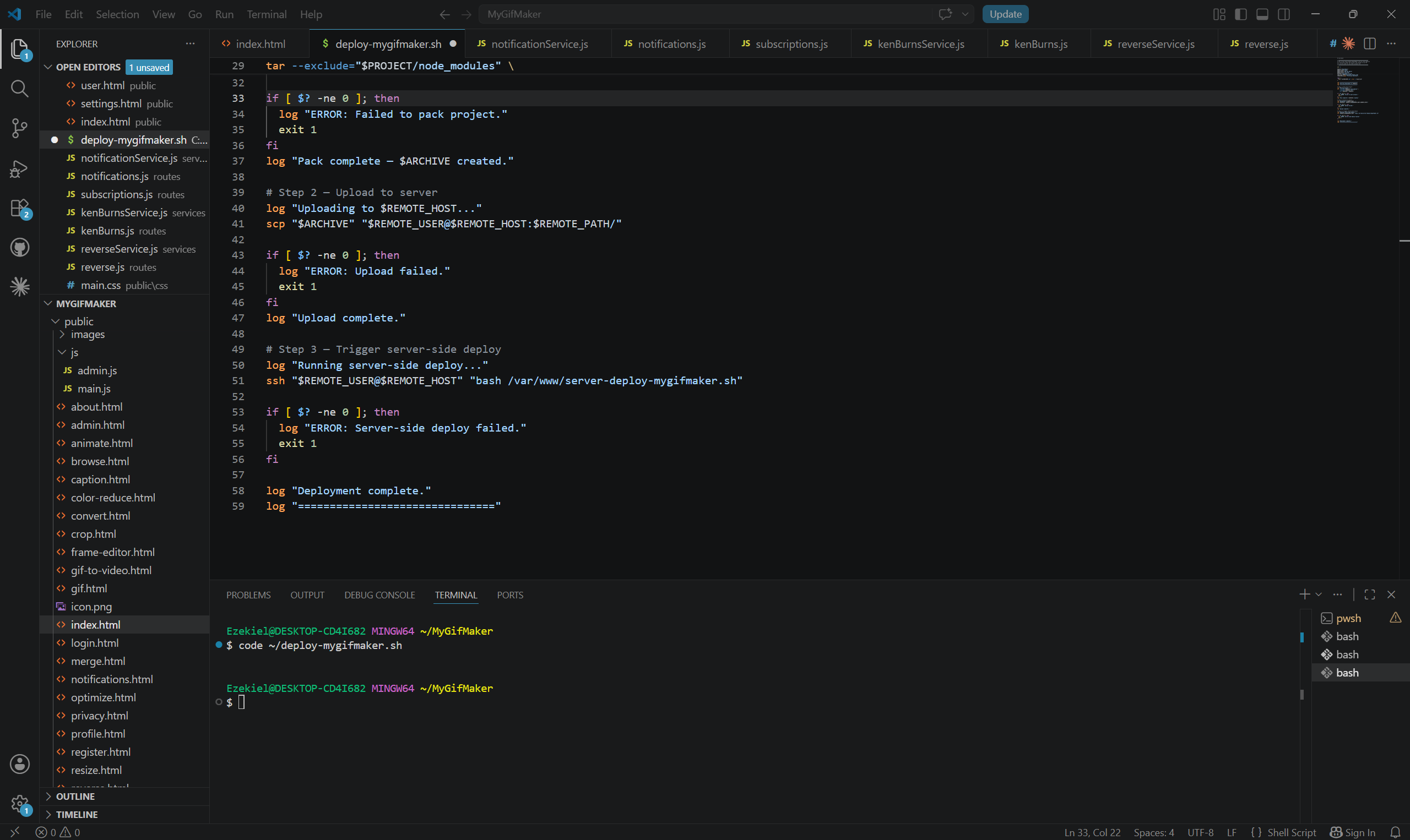
What This Screenshot Shows:The second half of the deployment pipeline: uploading the archive to the VPS via scp, triggering a remote server-side deploy script over SSH, and handling errors at each step with graceful exits and logged feedback.
Brief Points
- scp transfers the .tar.gz archive directly to the remote server path
- SSH remotely triggers the server-deploy-mygifmaker.sh script on my VPS
- Error handling at every stage. If any step fails, it logs the error and exits with code 1 to stop the chain
- Clean finish with a “Deployment complete” log banner
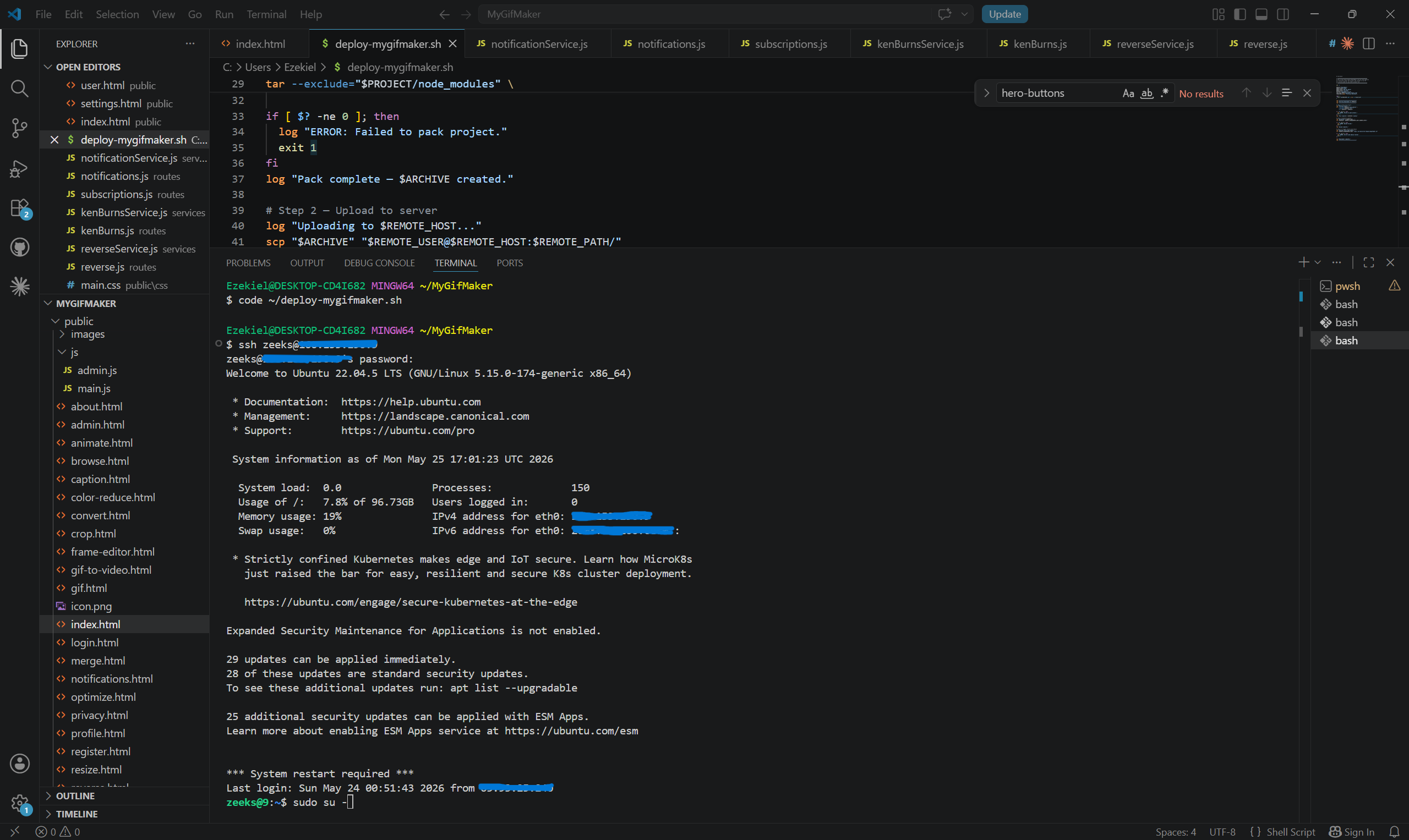
What This Screenshot Shows:The deployment script in action. After SSHing into my Ubuntu 22.04 VPS, with the server’s system info displayed on login: healthy stats (0.0 load, 19% memory usage, 96GB disk) and the terminal ready for the server-side deploy to execute.
Brief Points
- Live SSH connection to a real Ubuntu 22.04.5 LTS VPS (blurred IP for security)
- Server stats confirm a healthy environment before deployment begins: 0.0 system load, 19% memory, 7.8% disk usage
- The redacted IP/credentials show security-conscious development practices
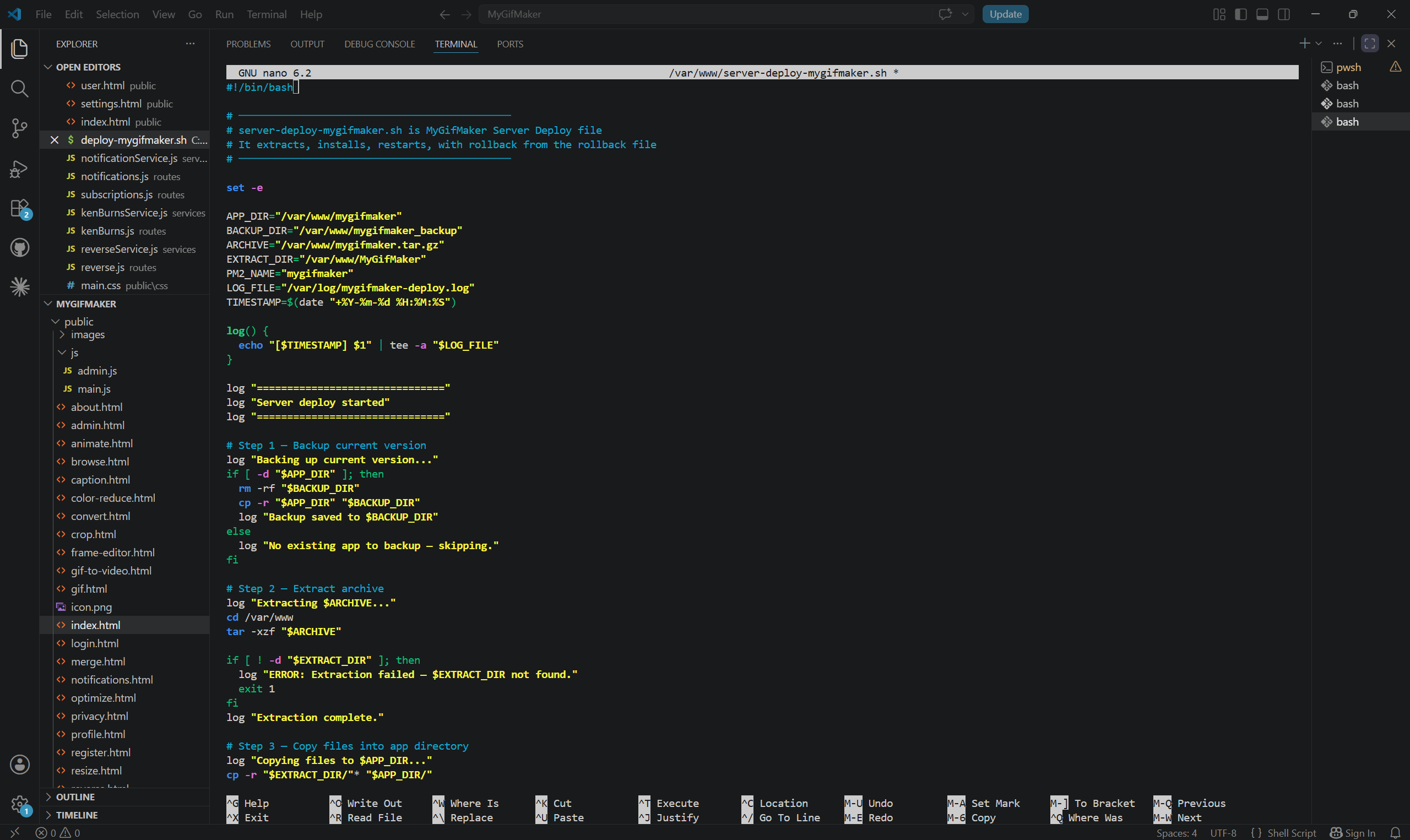
What This Screenshot Shows:The server-side deploy script (server-deploy-mygifmaker.sh) open in nano on the live VPS. This is the script that the local deploy triggers remotely via SSH.
Brief Points
- Step 1 (Backup): Copies the existing app directory to a mygifmaker_backup folder before touching anything, enabling safe rollback
- Step 2 (Extract): Unpacks the uploaded .tar.gz archive into /var/www and verifies the extract directory exists before continuing
- Step 3 (Copy): Moves extracted files into the live app directory
- Uses PM2 (Node.js process manager): visible in the PM2_NAME variable indicating the app runs as a managed background process
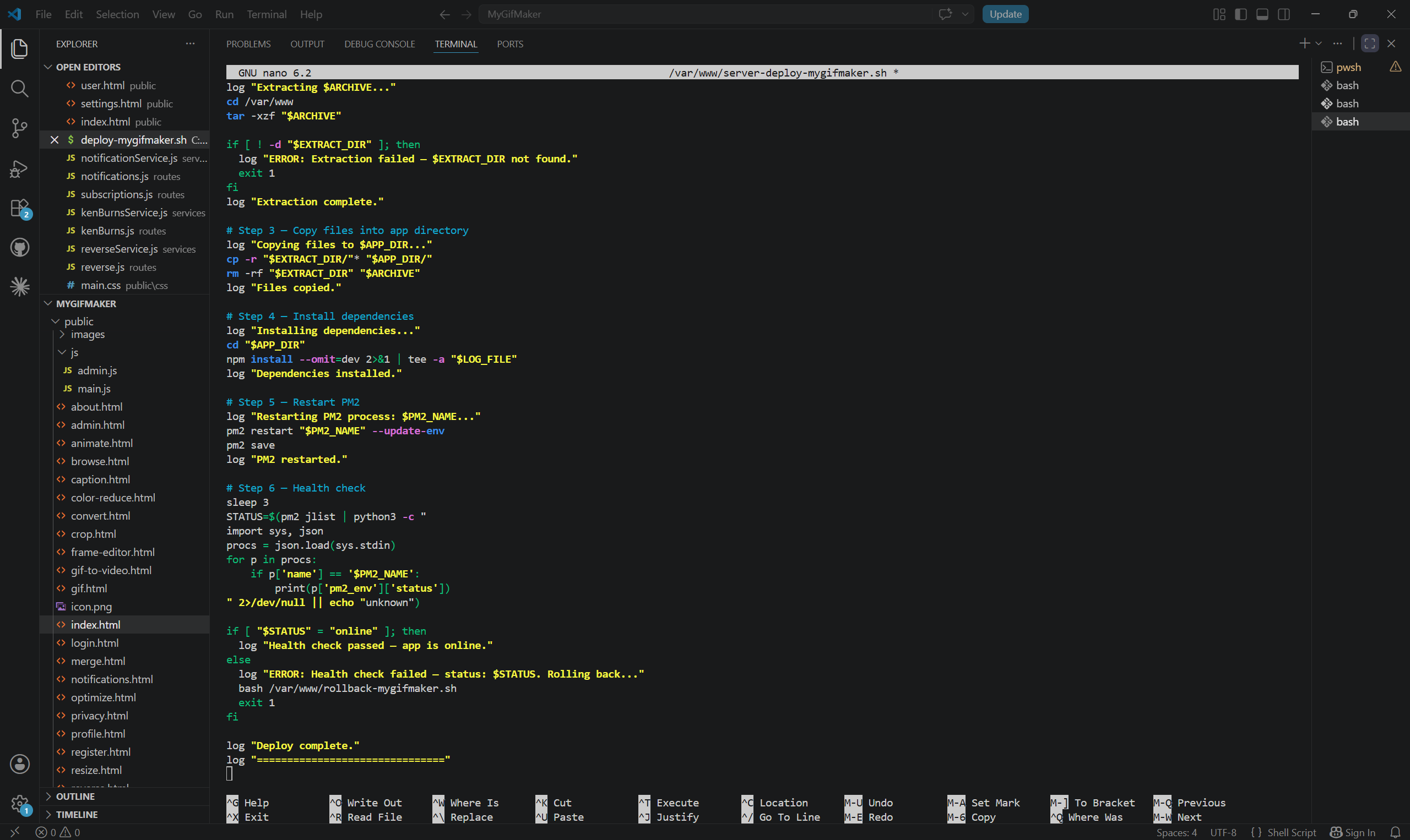
What This Screenshot Shows:The final stages of the server-side deploy script that contains installing dependencies, restarting the app with PM2, running a post-deploy health check, and automatically rolling back if the app fails to come online.
Brief Points
- The script runs “npm install –omit=dev” in the app directory, logging all output to the deploy log
- Then it restarts the named PM2 process with –update-env to pick up any environment changes, then saves the PM2 process list
- Waits 3 seconds, then uses pm2 jlist + a Python one-liner to parse the process status as JSON and confirm the app is “online”
- If the health check fails, it immediately triggers rollback-mygifmaker.sh and exits
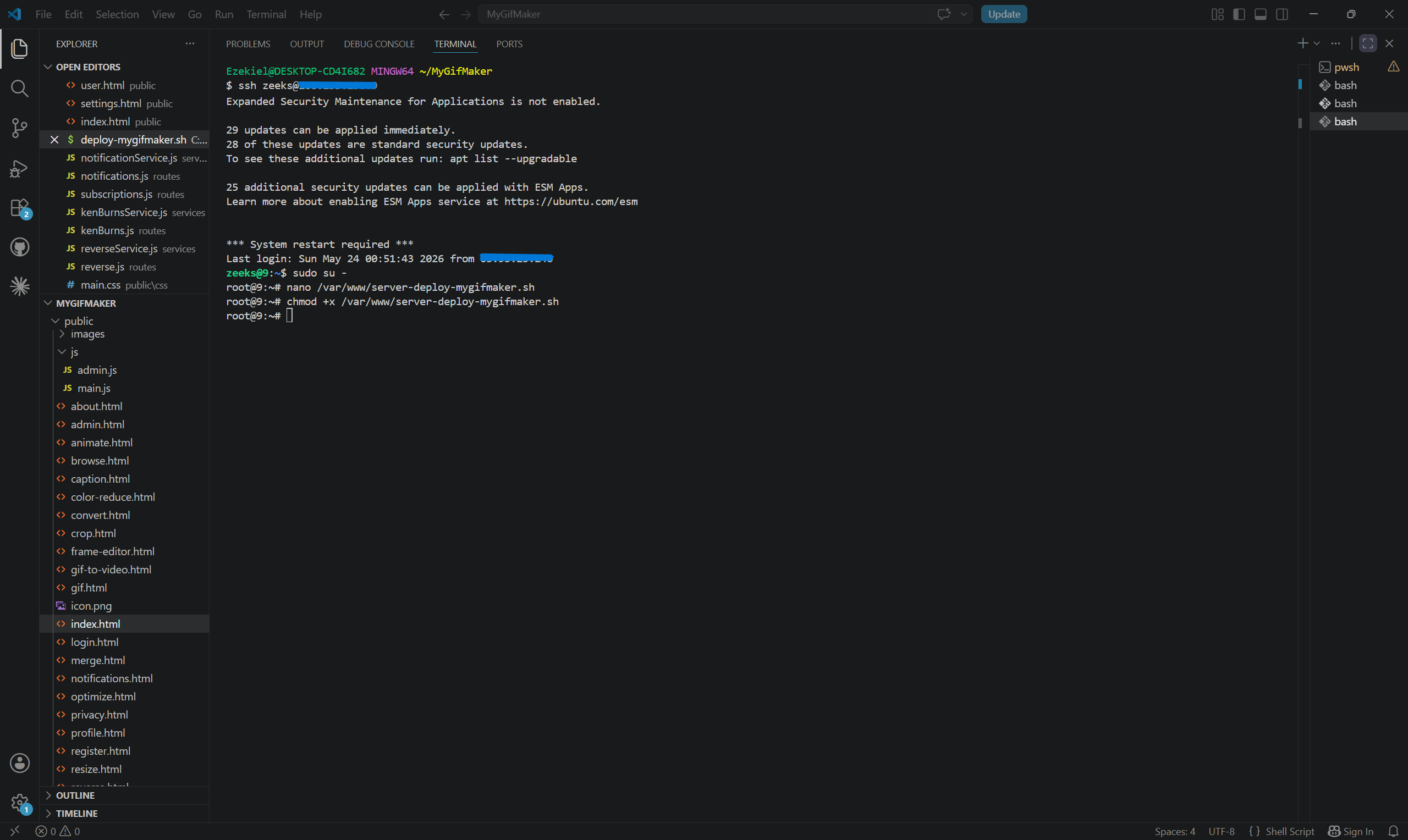
What This Screenshot Shows:SSHing into the VPS, escalating to root, writing the server-side deploy script with nano, and making it executable with chmod +x.
Brief Points
- Used sudo su – to escalates to root for full permissions
- nano /var/www/server-deploy-mygifmaker.sh writes the script directly on the server
- chmod +x makes the script executable so the SSH trigger from the local machine can run it
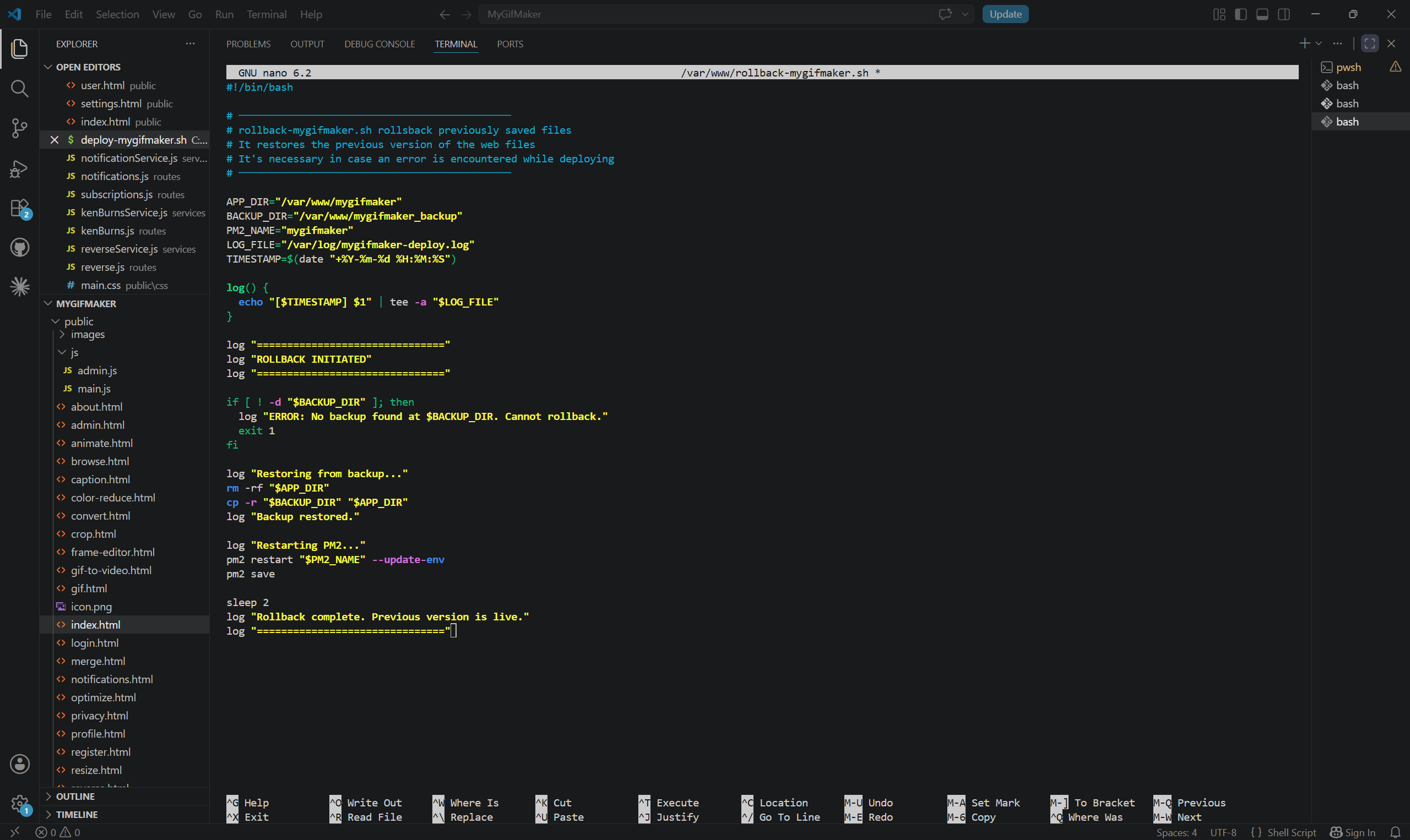
What This Screenshot Shows:The dedicated rollback script (rollback-mygifmaker.sh). This standalone Bash script restores the previous version of the web app if a deploy fails, restarts PM2, and confirms the old version is live.
Brief Points
- Checks that a backup directory actually exists before attempting anything (logs a clear error and exits if not)
- Wipes the broken app directory with rm -rf and restores the backup with cp -r — a clean, complete swap
- Restarts PM2 with –update-env after restoring, ensuring the process manager picks up the old version correctly
- “sleep 2” gives the process time to come up before logging “Previous version is live”